Carousels in 1 minute with ChatGPT + HeyMark
Connect Instagram to ChatGPT through HeyMark and turn what already works on your account into a carousel ready to publish.
Set up HeyMark once
First, prepare your HeyMark account and copy its MCP URL.
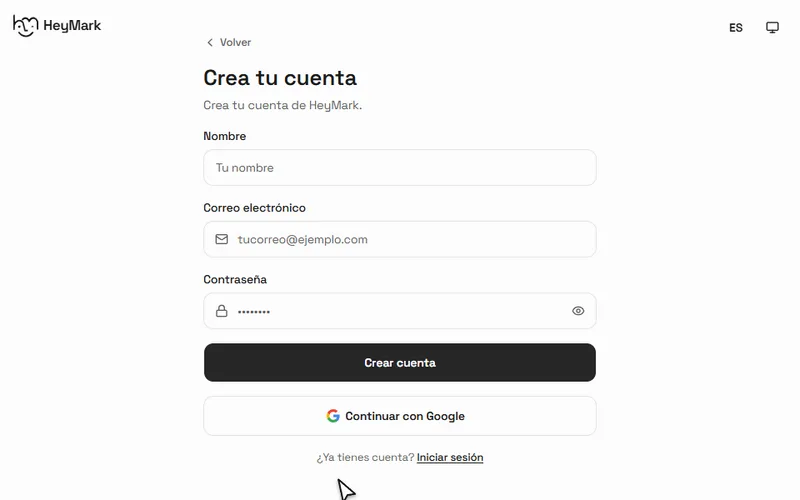
- Open HeyMark
Open HeyMark and create your account or sign in. Then connect the Instagram account you want to use. This lets HeyMark read its posts and metrics.
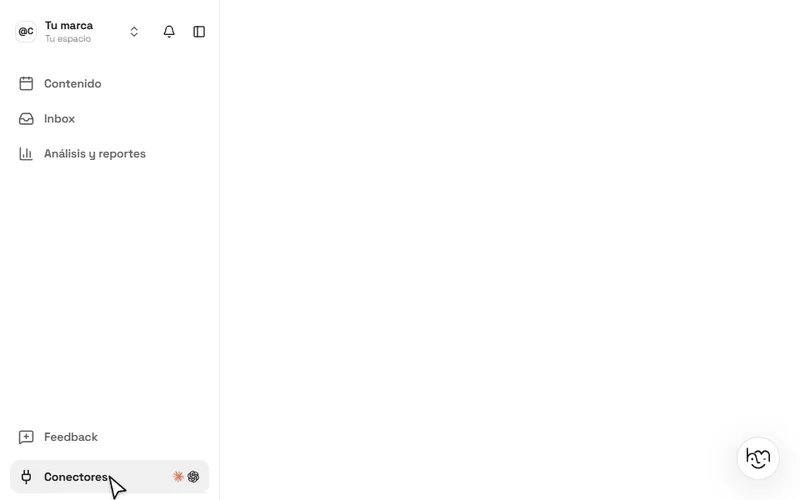
Open HeyMark - Open Connectors
In HeyMark, select Connectors. You will find the connection you need for ChatGPT there.
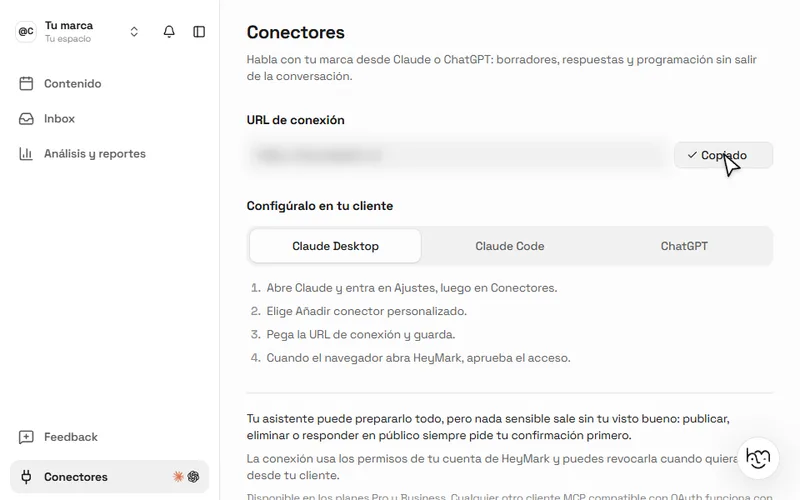
- Copy the MCP URL
Select Copy URL. You will use it in ChatGPT next. The URL is public; access to your workspace is protected by the OAuth authorization you complete afterward.
Connect HeyMark to ChatGPT
Complete this setup in ChatGPT from your browser. Custom apps depend on your plan and workspace permissions.
- Open ChatGPT
Open ChatGPT and sign in with the account where you will create the carousel.
Open ChatGPT - Open Settings
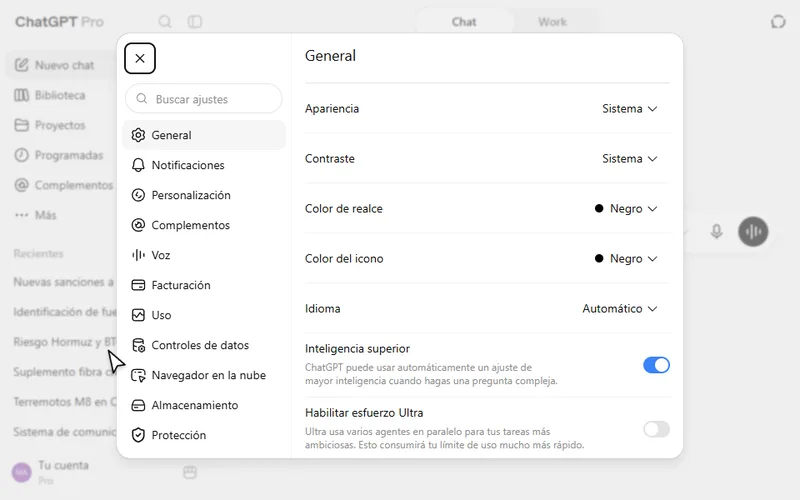
Select your profile and open Settings.
- Open Apps
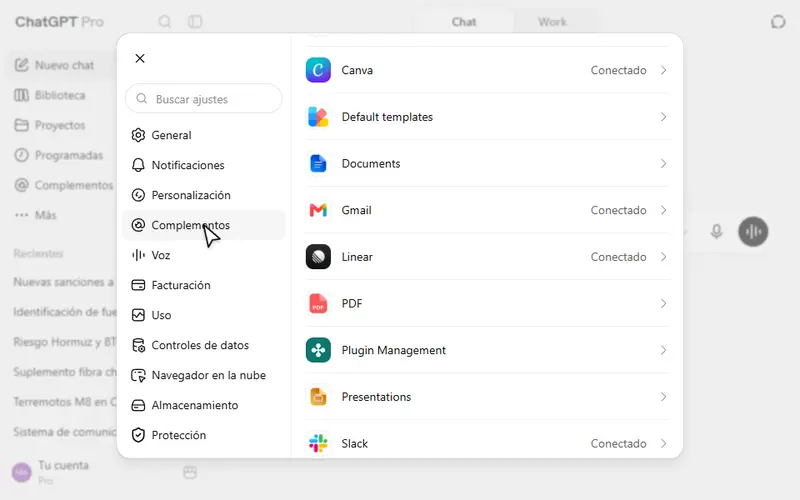
In Settings, open Apps or Plugins. You will see your installed apps and access to developer mode.
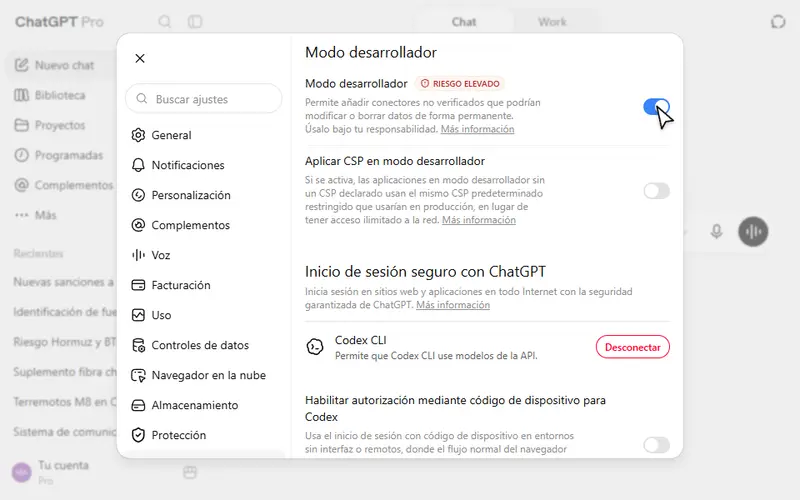
- Turn on developer mode
At the bottom of Apps or Plugins, select Developer mode and turn it on. ChatGPT displays a warning because custom apps can access external services.
- Create the HeyMark app
Open Apps from the sidebar and select Create app. Enter HeyMark as the name, paste your MCP URL into MCP server URL, confirm that you understand the warning and select Create.
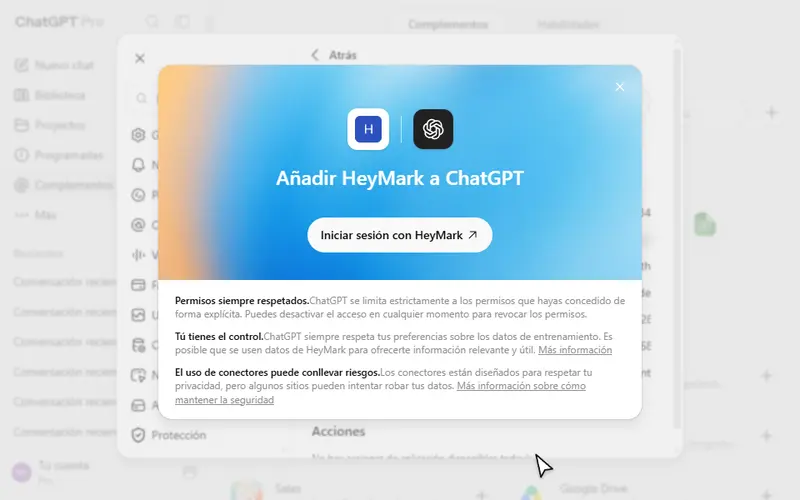
- Authorize HeyMark
Select Sign in with HeyMark and authorize the connection. When it is done, you will return to ChatGPT and HeyMark will appear among your apps.
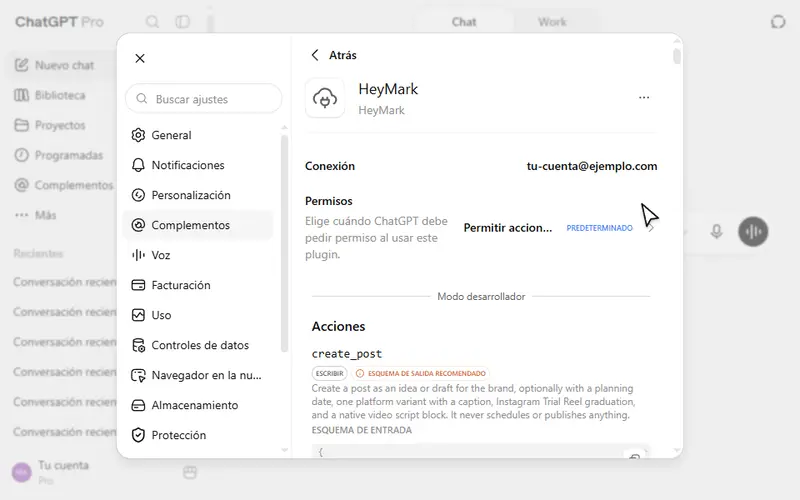
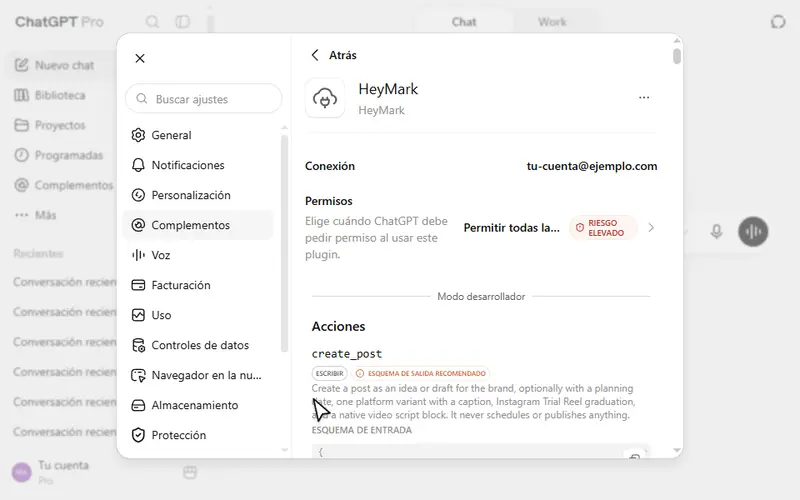
- Allow all actions
Open Settings, go to Apps or Plugins and select HeyMark. Under Permissions, choose Allow all actions. Only do this for the connection you created from your own HeyMark account.
Create the carousel in a chat
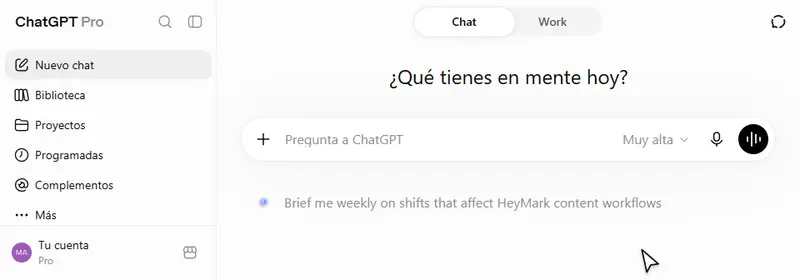
From here, everything happens in a regular chat. HeyMark brings in your account data and ChatGPT turns it into a carousel.
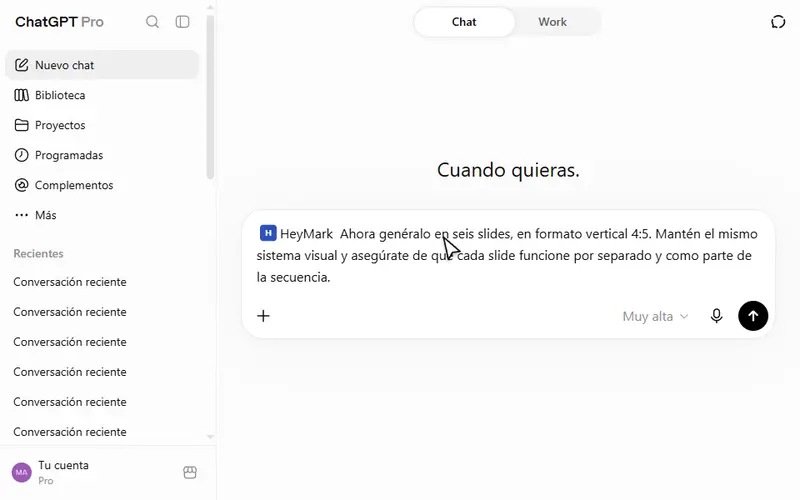
- Activate HeyMark
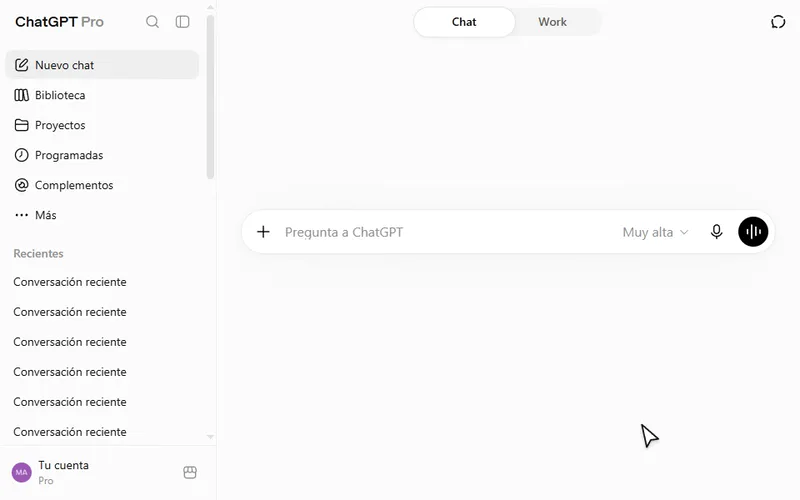
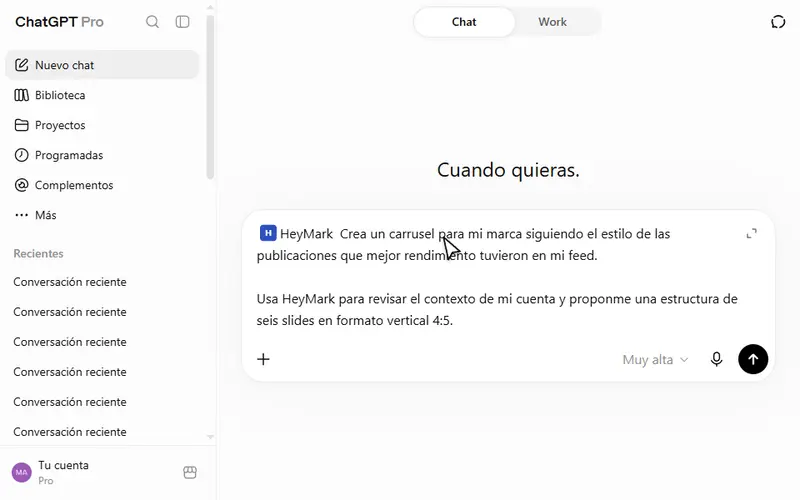
Open a chat and select +. Without clicking anywhere else, type Hey. When HeyMark appears, select it. Before writing your message, confirm that its name is visible in the field.
- Request a proposal
Paste the first prompt into the chat. It asks ChatGPT to consult HeyMark before proposing an idea, so the carousel starts with real results from your account.
Prompt 1: find the idea and structure the carousel
Create a carousel for my brand using the style of the posts that performed best in my feed.

Use HeyMark to review the context of my account and propose a six slide structure in a vertical 4:5 format.
- Generate all six slides
Read the proposal. If the idea fits your brand, send the second prompt to generate the carousel.
Prompt 2: generate the carousel
Now generate it as six slides in a vertical 4:5 format. Keep the same visual system and make sure every slide works on its own and as part of the sequence.
Review the result before publishing
You should receive six vertical slides built around one idea: a cover that stops the scroll, a sequence that is easy to follow and a clear ending. Before downloading, check that the text is readable, there are no errors and the result feels true to your brand.
If ChatGPT delivers one composition, ask it to separate each slide into its own 1080 by 1350 pixel file. If the idea works but the design does not, keep the structure and try a different visual direction.
Common problems
HeyMark does not appear when I select +
Confirm that developer mode is still active, HeyMark is created and authorized, and your plan or workspace allows custom apps. Then open a new chat, select + and type Hey.
ChatGPT responds with generic ideas
Check that HeyMark appears as active in the message field. You can also ask it to name three posts from your account that it used as references before it proposes the carousel.
ChatGPT provides the copy but does not create images
Send the second prompt after approving the structure. If it still does not generate them, explicitly request six visual slides in a vertical 4:5 format.
The carousel appears as a single image
Ask for six separate 1080 by 1350 pixel files and clarify that they should keep the same visual system across slides.