Gemini + HeyMark
In this guide, you'll connect HeyMark to Gemini so you can ask about your posts, calendar and performance using your brand's real data.
You’ll need a HeyMark account and a personal Google Account. To analyze Instagram or another network, connect that social account to your brand in HeyMark first.
We tested this connection from Chile on November 2, 2026, using a personal account with Gemini in English. Look for Create custom app in Connected Apps to check whether your account has access.
Google’s help page still lists US availability and an age requirement of 18 or over. That regional description differs from the access we verified from Chile; our test does not confirm availability for every account. Google also requires Keep Activity to be on and excludes work and school accounts.
How to connect Gemini to HeyMark
Set up the connection in Gemini on the web. It stays linked to your Google Account. You don’t need an API key or a server of your own: you’ll enter HeyMark’s public MCP URL and approve access with your HeyMark account.
The recordings show Gemini in English. Button names and availability may vary as Google rolls out updates.
- Prepare your HeyMark account
Already using HeyMark with your brand? Move on to the next step. Otherwise, open HeyMark, create your account and connect the social network you want to work with.
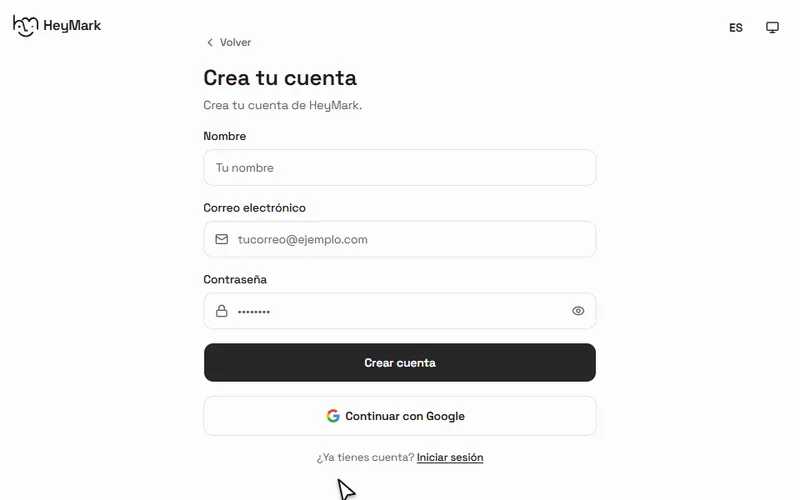
Open HeyMark and complete sign-up to create your workspace.
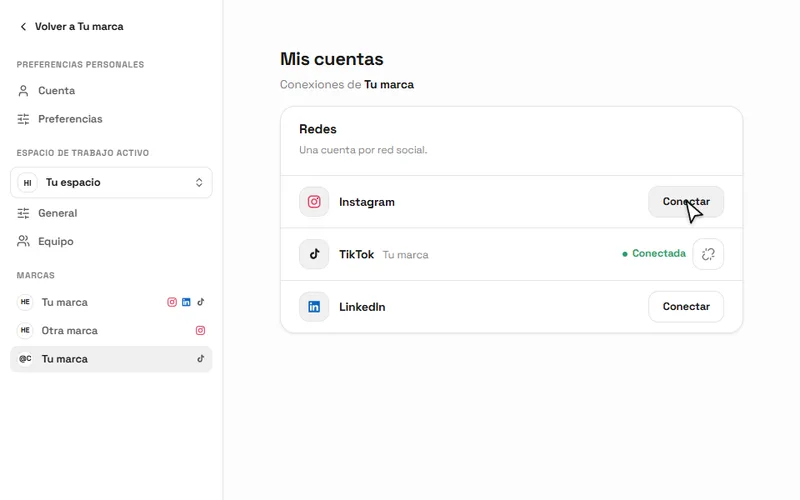
Open your brand and connect the Instagram account you want to look up from Gemini.
- Open Connected Apps in Gemini
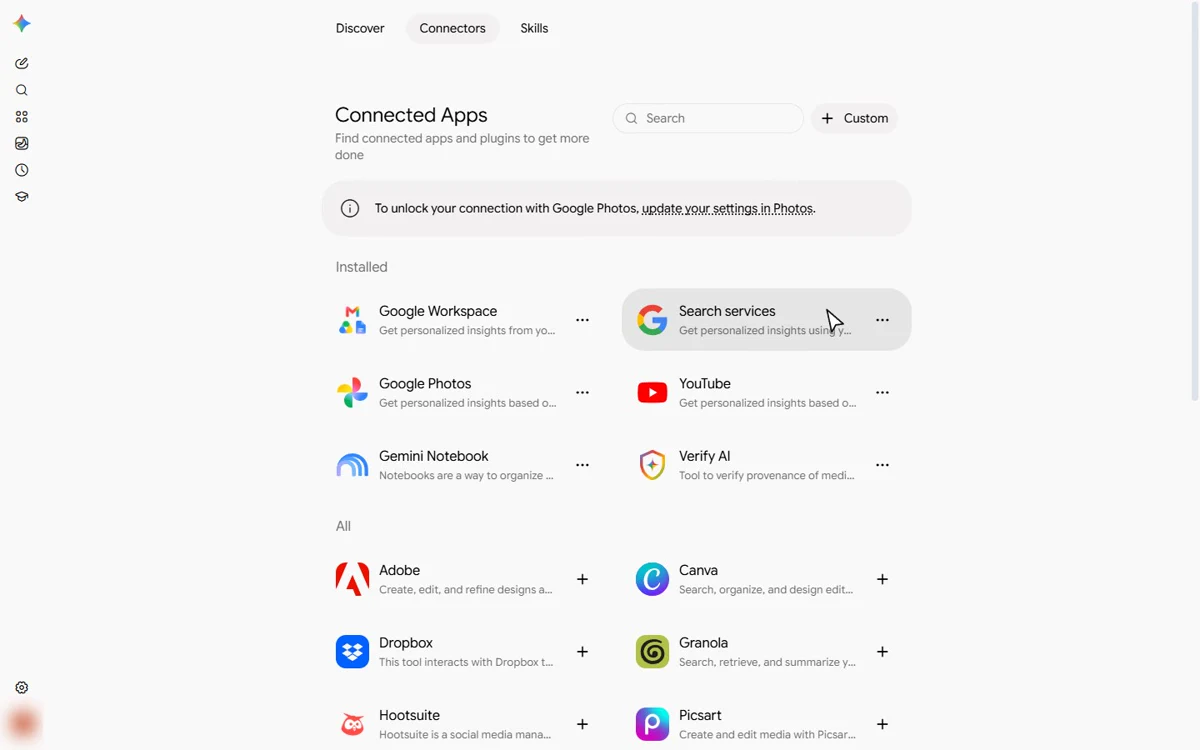
Sign in to gemini.google.com with your personal Google Account. Open Settings → Personal Intelligence → Connected Apps. Some accounts show Connected Apps directly inside Settings.
You can also open the Connected Apps page. Look for the Custom button to create an app.
- Add HeyMark's MCP URL
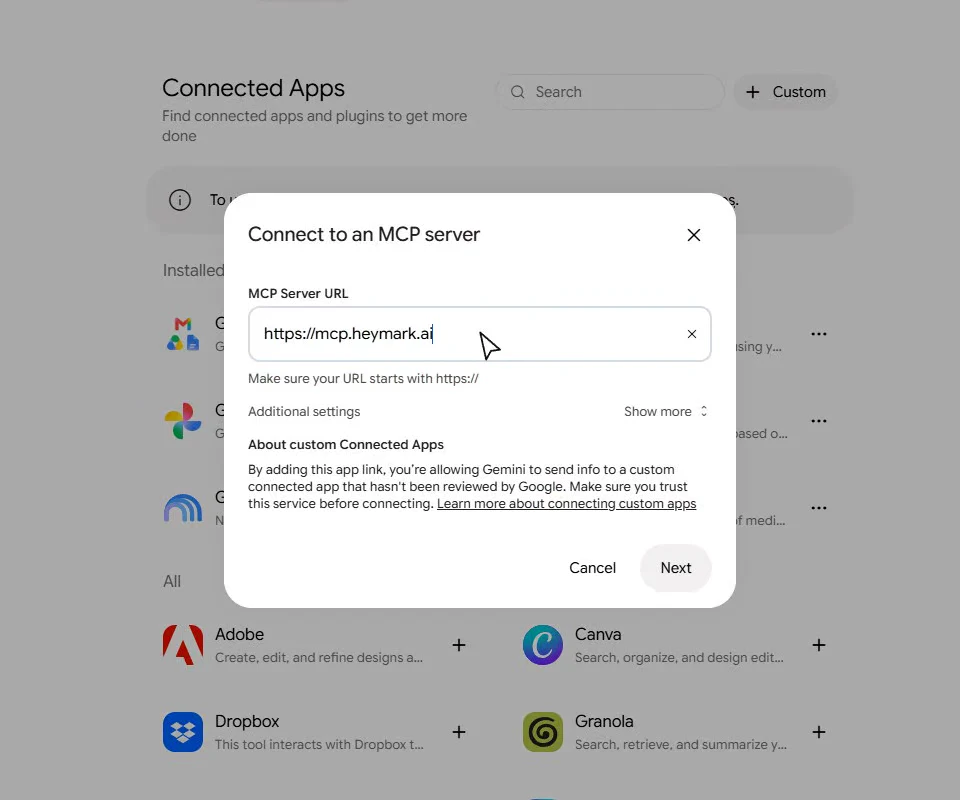
Click Custom. Paste this address into MCP Server URL, then click Next:
https://mcp.heymark.aiYou don’t need to open Additional settings or enter a Client ID or password in this form.
- Review and authorize the connection
Gemini will explain tool access and data sharing. Read the notice and, if you agree, select the checkbox and click Connect. Google may show another account-linking screen with an Agree and continue button.
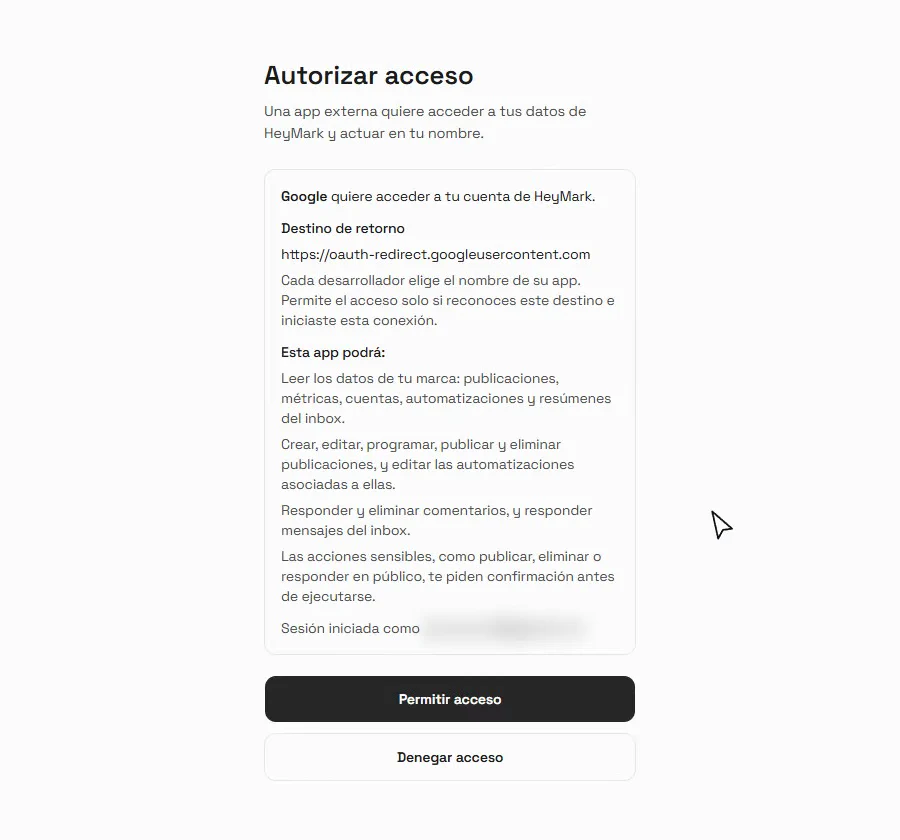
When HeyMark opens, sign in if needed. Check that you’re using the right HeyMark account, review the access Google is requesting and click Allow access (Permitir acceso in the recording). You’ll return to Gemini to finish connecting.
The MCP URL is public. This authorization is what grants access to your data: Gemini gets your HeyMark account’s permissions, not access to other people’s brands. Information you retrieve also becomes part of your conversation with Gemini.
- Save the app as HeyMark
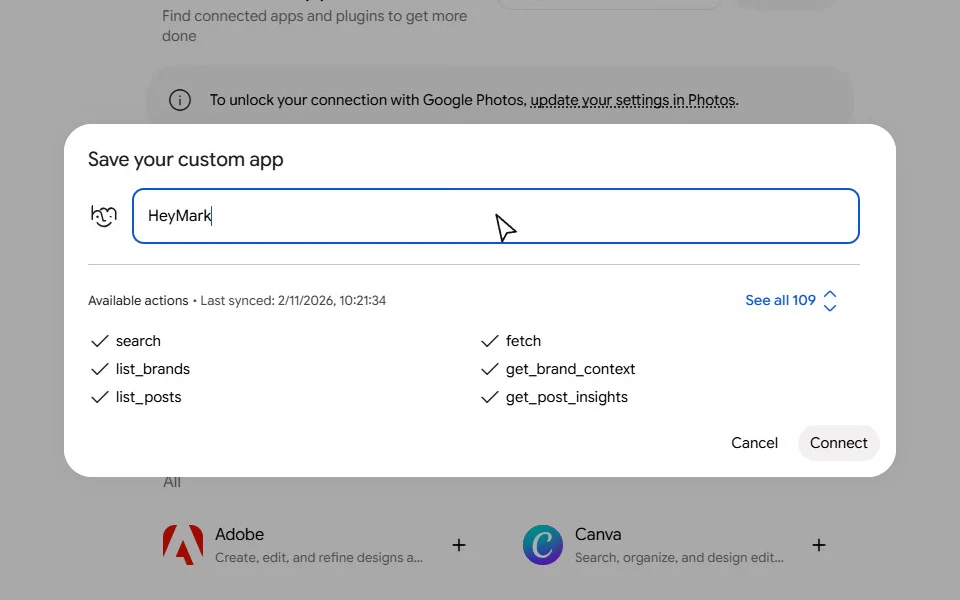
In Save your custom app, enter HeyMark as the app name. Available actions, such as list_brands and get_brand_context, should appear below. The count can change as HeyMark adds features.
Click Connect. HeyMark will appear under Custom apps. Open its details to review actions and permissions. Keep confirmation prompts for actions that change or publish content.
- Check that Gemini can read HeyMark
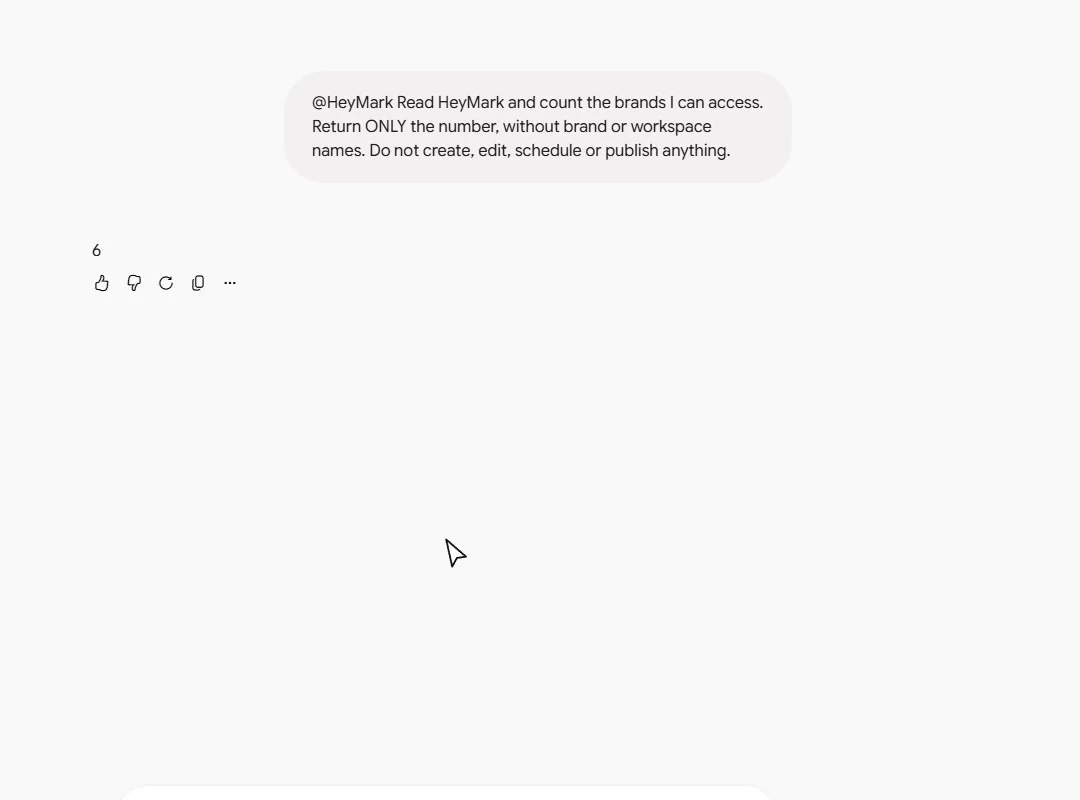
Start a new chat, type @HeyMark and select HeyMark from the menu. Then paste the prompt below. If you have several brands, choose the one you want when Gemini asks.
First check: don't change anything
Check HeyMark and tell me how many brands I can access. Do not create, edit, schedule or publish anything.

If you cannot access the connector, say so. Do not answer from memories of another conversation or invent the result.
A working response should match the brands you have in HeyMark. For a second check, ask for the name, time zone and connected networks of your selected brand.
What to ask next
Gemini can use HeyMark to work with your brand context, prepare posts, organize your team, review results and handle conversations. It can also save changes, including creating drafts, scheduling content and configuring automatic replies.
Select @HeyMark before sending a prompt and confirm which brand you’re working with. Open an example that fits your task and adapt it. Some actions depend on your plan, permissions and connected social accounts.
The miniatures show the result format. Gemini will prepare it using your brand’s available data.
Understand your brand and find ideas
Review your brand profileOffer, audience, topics and voice, with gaps to fill.
Read my brand profile and connected accounts in HeyMark. If I have several brands, ask which one I want to review.

Summarize what we offer, who we speak to, our topics and how we write. Distinguish information we provided from observations inferred from published content. Flag missing or potentially outdated information before using it in a campaign.
Correct your brand contextA proposed change to review before saving.
I want to update my brand context in HeyMark. Ask which field I want to correct: identity, audience, themes, tone, structure, length, words, phrases or notes.

Read the current value and show how it would change using information I provide. Ask for approval before saving. Preserve the other fields.
Find ten content ideasTen angles with a network, format, opening and a reference from your history.
Read my brand profile and recent HeyMark posts. Suggest ten ideas for next week, mixing topics we already cover with others we could test.

For each idea, include the angle, network, format, opening and the post or data that informed it. Explain the hypothesis we would test. Present the ideas here before creating them in HeyMark.
Create and adapt posts
Write a script and captionA script showing what viewers see and hear, plus the post caption.
Help me develop an idea for my brand in HeyMark. Ask about the topic and goal, then read the brand context and recent examples.

Prepare a script with an opening, development and closing, specifying what viewers see and hear. Add a caption in the brand's voice. Show me the proposal; once I approve it, save it as a new idea with its script in HeyMark.
Create three campaign draftsThree campaign angles with captions, planning dates and required media.
Let's prepare three campaign posts in HeyMark. Ask about the goal, product or service, networks and planning dates.

Propose the three angles first. Once I approve them, create the drafts with a title, idea, caption and planning date. List the files each piece needs and return its HeyMark link. Leave them unscheduled and unpublished; a planning date is not a publication schedule.
Adapt a postA version for another network or brand, preserving the original.
I want to reuse a HeyMark post. Ask which post and which destination network or brand. Read the full caption, planning content and media, along with the destination brand's context.

Show the adapted text and any required format changes. After I approve, create a draft copy and preserve the original. If media is still importing or doesn't suit the destination, flag it before scheduling.
Review video and coverOpening, caption and cover improvements based on available files and analysis.
Ask which HeyMark post I want to review. Read its available files, cover, transcript and visual analysis.

Summarize what the piece shows, what is said and how it relates to the caption. Suggest specific improvements to the opening, text or cover. If you only have a cover or the video analysis is missing, explain what you could review. Don't invent scenes or change files yet.
To add photos, videos or a cover, Gemini needs to be able to deliver the files to the connector. If it can’t, upload them from the post in HeyMark, then continue here with the caption, review or scheduling. Attaching an image to the chat doesn’t mean it has been saved to the post.
Organize your team’s work
Review next weekA calendar showing gaps, unfinished pieces and what to finish first.
Read my brand's HeyMark calendar for next week. First confirm the brand, dates and time zone.

Separate ideas, drafts, scheduled posts and published posts. Flag days with no content and pieces that need text, files or a team review. Include their links and suggest an order for finishing them. Preserve their current dates and statuses.
Assign campaign workProposed labels, assignees and private team comments for each piece.
Help me organize a campaign in HeyMark. Ask which posts it includes, then check the brand's available labels, planning statuses and team members.

Propose a campaign label, assignee and status for each draft. Preserve the statuses of posts already scheduled or published. Show the private comments you would leave for the team about unfinished work. Once I approve, apply that organization and return the post links. Keep those comments inside HeyMark.
Link an external postA draft and its actual post compared before linking.
I published a piece directly on a social network after preparing it in HeyMark. Help me find its draft and the actual publication on the connected account.

Compare the text, files, network and date. Show both posts and ask for approval before linking them. If the external publication hasn't appeared yet, check whether discovery can be requested and distinguish a search in progress from a post already found.
Schedule and publish
Schedule ready draftsAccount, content, timing and approval checks before scheduling.
I want to schedule content for my brand in HeyMark. Ask which drafts, dates and times to use, and confirm the time zone.

Check each piece's destination account, caption, files and required approvals. Show the summary before scheduling and wait for my confirmation. Afterward, return the links and actual state of each post. If a post is awaiting approval, say so.
Move or cancel a scheduleA date change or removal of the schedule for one specific post.
I need to change a scheduled HeyMark post. Ask which one and whether I want to move it to another date or remove its schedule.

Show the network, content and current date. If moving it, confirm the new date, time and time zone. Wait for my approval before changing it, then check its state. Preserve the other posts.
Publish one post nowVersion and account to confirm, then the actual state and a link when available.
I want to publish a HeyMark draft now. Ask which draft and confirm the brand and destination account.

Check that it has the required content and files. Show the version that will go out and wait for my explicit confirmation before publishing. If HeyMark only accepts the request or publication is still processing, say so; share the public link when available.
Creating an idea, saving a draft, changing its planning date and scheduling publication are separate actions. Before publishing, sending a reply or enabling an automation, review the summary of what will happen. Complete any required team approval in HeyMark.
Understand results, audiences and competitors
Prepare a monthly reportResults by network, five posts to review and three tests for next month.
Prepare a report for my brand using HeyMark reports for the last complete month. Confirm the dates and separate results by network.

Summarize follower trends and available metrics. Show five posts worth reviewing, with links, results and previous-period comparisons where available. Keep feed posts and Stories separate. Finish with three tests for next month and the data behind them. Flag missing metrics, stale data or partial results.
Understand your audienceAvailable demographics and three content angles to test.
Read the available audience demographics for my brand in HeyMark: age, gender, countries and cities.

Identify the source network and missing information. Use that reading alongside the brand profile and recent posts to suggest three content angles. Distinguish data from hypotheses and avoid assuming every follower has the same interests.
Compare with followed accountsThirty days of public metrics and three posts to learn from.
Read the competitors my brand follows in HeyMark. Ask whether I want to review Instagram or TikTok and use a 30-day period.

Compare our account with those accounts using available public metrics. Select three posts that stood out against their own account's usual performance and explain what we could learn. Include links and separate observations from hypotheses. Don't attribute non-public reach, impressions or demographics to competitors.
From Benchmarks, you can also ask to follow a public Instagram or TikTok account, stop following it or enable its alert. Confirm the network and exact profile. If adding it requires an extra charge, HeyMark will ask you to complete that step in the app.
Handle the inbox and configure replies
Prioritize your inboxConversations grouped by topic, suggested priority and unsent reply drafts.
Review my brand's HeyMark inbox and open cases that Mark has handed over to a person.

Group conversations into sales questions, support and other topics. Summarize what happened in each case and suggest which to handle first, with the context needed to reply. Prepare draft responses using the available brand information. Leave messages unsent and preserve their read state.
Draft a replyConversation context and an exact reply to approve before sending.
Help me reply to a public comment or direct message through HeyMark. Ask which one and read the available conversation history before drafting.

Suggest a response using the brand's voice and information. Ask me for any missing details. Show the account, recipient and exact text, then wait for my approval before sending. Check the send result afterward.
Review moderation casesReply, human review or hide suggestions, each with a reason.
Review open moderation cases and recent comments for my brand in HeyMark. If Meta ad comments are available, include them separately.

Flag comments that need a reply, cases a person should review and comments you suggest hiding. Read the context and explain each proposal. Ask for approval before replying or changing visibility. Don't delete comments.
Prepare a keyword ruleA trigger, reply and optional DM to review before enabling.
I want to prepare a comment automation for a HeyMark post. Ask about the post, keyword, public response and whether it should send a DM with a link or button.

First check existing automations and availability on that network. Show the trigger, messages and what would happen if the DM can't be sent. Wait for my approval before saving or enabling it. Don't apply the rule to older comments without asking separately.
Adjust Mark’s DM repliesProposed DM instructions, team notifications and handoff criteria.
Review Mark's direct-message reply settings for my brand in HeyMark. Summarize whether it is active, which instructions it uses and when it hands a conversation to the team.

Ask what I want to change and who should be notified when help is needed. Show the proposed configuration and wait for approval before saving or enabling it. If a person only needs to handle one case, suggest pausing Mark in that conversation.
These examples combine data queries, Gemini’s proposals and connector actions. If a tool isn’t available in your connection or your account lacks access, Gemini should say so. Review the available actions in HeyMark’s Connected Apps details. Generating an image in Gemini, uploading it to HeyMark and publishing it are separate steps.
Now put it to work.
HeyMark learns the rules you just wrote down, then plans, drafts, schedules and replies in that voice. You approve.
Common problems
Create custom app doesn't appear
Check that you’re using a personal account with Keep Activity on, and review Google’s age and language requirements. We tested the flow from Chile, although the documentation still mentions the US; that access does not guarantee the option for every account in a country. Work and school accounts don’t support this flow yet. Changing HeyMark’s MCP won’t make the button appear.
HeyMark is connected, but Gemini doesn't use it
Type @HeyMark and select the app from the menu before sending your question. Start with the connection-check prompt and compare the response with HeyMark. If Gemini can’t retrieve data, ask it to explain that limit rather than fill the gaps with guesses.
The response keeps loading or fails
Try a short question in a new chat. If a question without HeyMark also fails, check Gemini first. You can try another mode already available in your account; these steps don’t require you to buy a new plan. The connection-check recording uses Pro, which doesn’t establish a plan requirement.
Authorization doesn't return to Gemini
Check whether your browser blocked a sign-in window and that you’re using the right HeyMark account. Never paste passwords or tokens into the chat. Check Connected Apps to see whether the connection finished before starting over.
How do I disconnect HeyMark?
Return to Connected Apps, open HeyMark and select Disconnect. Google also lets you remove the custom app from its options. Disconnecting doesn’t cancel posts already scheduled or automations you’ve enabled in HeyMark.
Useful links
- Gemini Connected Apps: add or manage HeyMark.
- Google’s official help: custom app requirements and setup.
- HeyMark MCP: permissions, shared data and available actions.
- Claude + HeyMark: use the same brand context from Claude.
- ChatGPT + HeyMark: connect your accounts and prepare a carousel.
This flow was checked from Chile on November 2, 2026 with a personal Google Account and Gemini in English. It adds a custom app to your account; it doesn’t require a public HeyMark listing in Google’s directory. Button names and availability may change as Gemini rolls out updates.