How to create multishot videos in Higgsfield with Seedance 2.5
In this guide, you will turn an idea into a 15-second multishot block, keep a character recognizable, and prepare new scenes for a longer video.
Before you begin
In this guide, you will direct a sequence of several shots inside Higgsfield Video with Seedance 2.5 as one generation. You will start with a character reference, build a timed prompt, and finish with a block ready to review, download, or combine with new scenes.
Two results, one system
The first video shows the direct outcome of this guide: a short block with a complete progression. The HeyMark launch shows how the same system scales when several blocks are joined in an editor.
You direct the piece and Higgsfield generates it. Claude or ChatGPT can help organize a long prompt, but they are optional: neither needs to connect to Higgsfield or take part in generation.
You will need
- Higgsfield
An active account with credits available.
- A clear idea
Something you can summarize in one sentence.
- A clean reference
Of the character, product, or place, if the piece needs one.
- A defined destination
For example, YouTube at 16:9 or Reels at 9:16.
- A sound intention
Ambience, effects, dialogue, or deliberate silence.
- A video editor
Only if you will join several blocks later.

The Generate button displays the cost for your account and chosen settings. That amount can change with duration, resolution, bitrate, sound, or plan. Verify everything before clicking.
To continue a story, reuse the protagonist reference and stable description. In each new block, describe the place, light, and route again. “Continue the previous scene” does not force the model to rebuild the exact earlier location.
Prepare Higgsfield
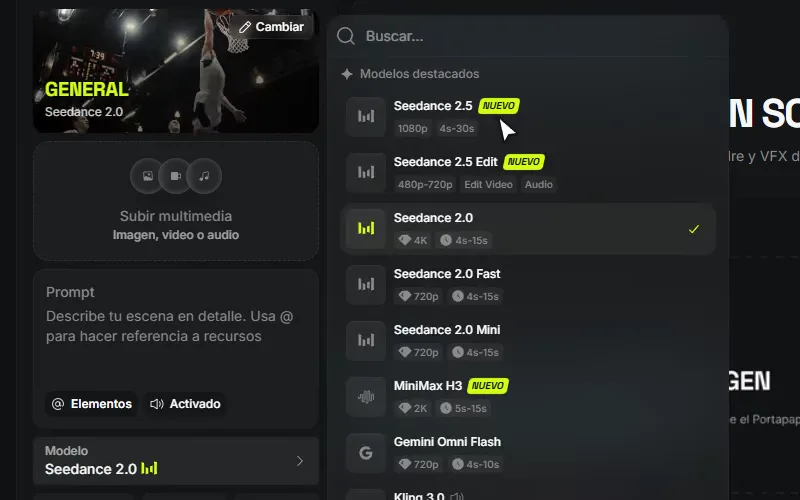
- Open Video and choose Seedance 2.5
Open Higgsfield Video. Inside Create video, open Model and select Seedance 2.5, not the Edit variant. The current general-model card identifies it and shows a range of 4 to 30 seconds.
Open Model and confirm the Seedance 2.5 card before preparing the generation. - Add a reference when continuity matters
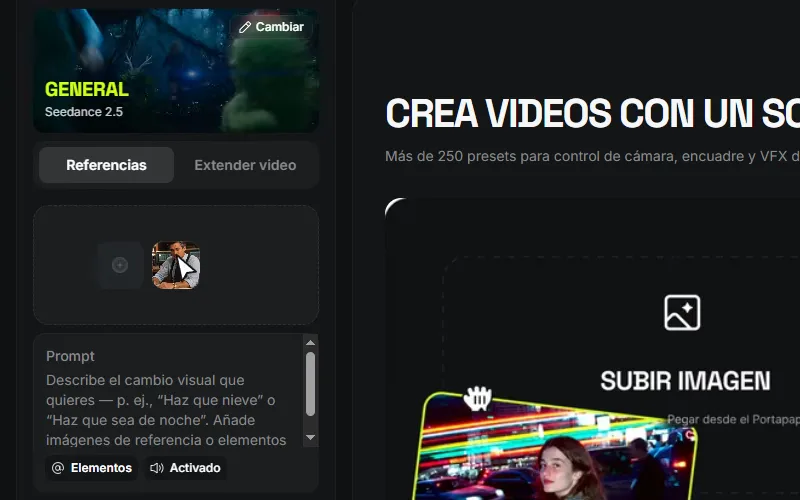
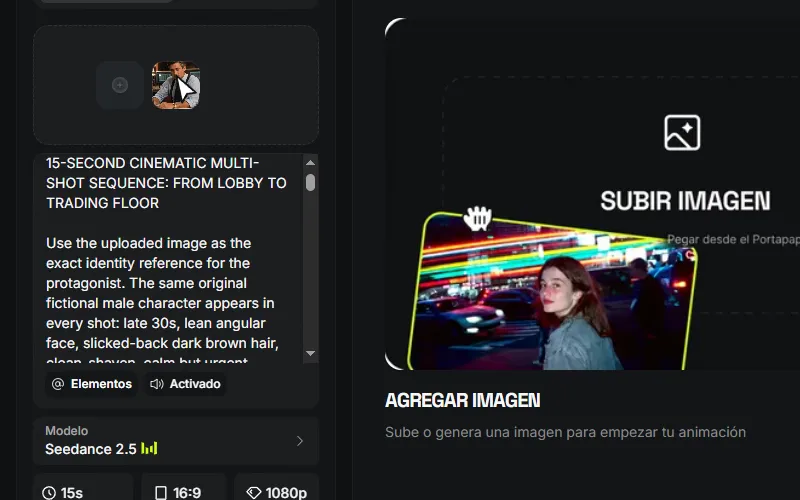
Keep References selected, click Add references, upload the image, and select it in the library. For a character, use a sharp image with a visible face and no other people competing for identity.
A reference anchors visual information; the prompt must still say what to preserve. For example, write “use the uploaded image as the exact identity reference,” then define the wardrobe for this block separately.
Upload the image, select it in the library, and confirm its thumbnail appears under References. - Set this block’s duration and format
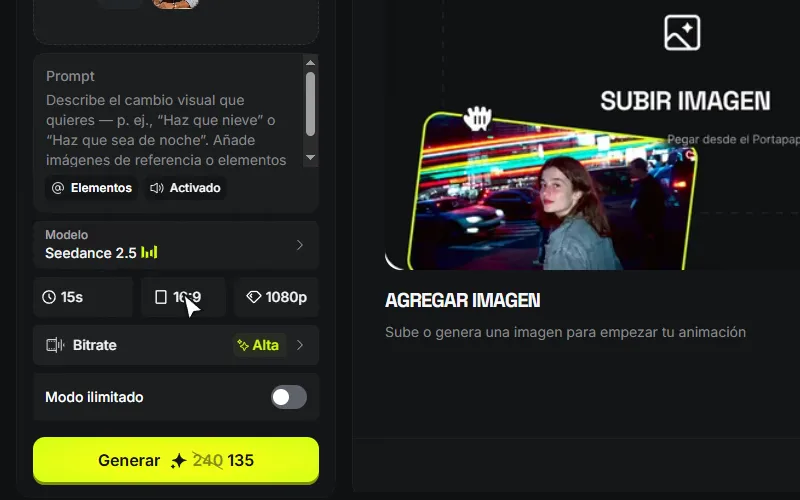
To reproduce the example, choose 15 sec and 16:9. If the destination is Reels, TikTok, or Shorts, switch the aspect ratio to 9:16 before generating. Do not copy the example format when it does not match the final post.
Set the total duration first, then choose the destination aspect ratio.
Write the multishot prompt
A multishot prompt is not twelve separate requests. It is one instruction with shared information and a shot list:
- Block: the complete generation; this exercise uses 15 seconds.
- Shot: a timed cut inside the block.
- Final video: one or more blocks joined in editing.
The shot ranges divide the same 15-second block. They do not represent twelve 15-second clips or twelve separate generations. Make them advance from 0:00 to 0:15 without gaps or overlaps.
Ask for help if the prompt gets long
You can write it directly. If you would rather start from a short idea, paste the request below into Claude or ChatGPT. Its only job is to organize your decisions and return text for you to review.
Turn my idea into a multishot prompt
Help me write one multishot prompt for Higgsfield with Seedance 2.5. Do not open Higgsfield or generate anything. BLOCK DETAILS Total duration: 15 seconds Aspect ratio and destination: 16:9 for YouTube, for example Approximate shot count: between 6 and 12 Complete idea: what happens in one sentence Progression: how it starts → what changes → how it ends CONTINUITY Protagonist or product: traits that must repeat Constant wardrobe and objects: recognizable details Available reference: what it shows and what it must preserve CONTEXT Place and period: where and when Light, texture, and tone: how it should feel Attitude: how the subject moves and what it must never convey SOUND Ambience arc: how sound changes between spaces Specific sounds: footsteps, doors, engine, paper, or others AVOID readable text, logos, gestures, objects, or unwanted movements First, identify contradictions or actions that cannot fit the available time. Ask me if an essential detail is missing. Then return one prompt containing: 1. Title and total duration. 2. Continuity note: only the reusable identity. 3. Block context: place, period, light, and route for this block. 4. Realism rules: physics, performance, texture, and shared constraints. 5. Timed shot list: SHOT N | start to end | framing, action, and camera. 6. Performance: the intention that remains constant. 7. Native sound: ambience and effects, only if requested. The ranges must be continuous and add up to the total duration. Keep one main action per shot. Do not repeat global rules inside every shot, and do not use “continue the previous scene.”
Review the response before taking it to Higgsfield. There should be one identity description, one context for the block, and one observable action per shot.
Real example: lobby to trading floor
This cleaned-up version keeps the structure of the real prompt: one 15-second block, 12 timed shots, one continuity note, and one sound arc. Shared rules appear once instead of being repeated in every shot.
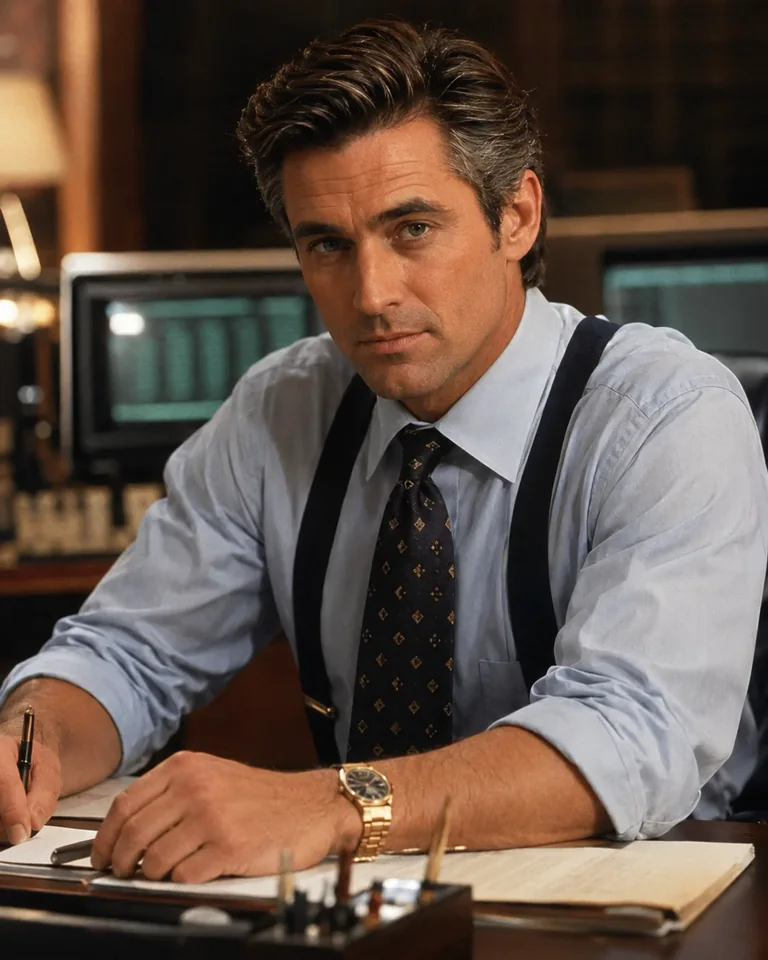
Identity reference
15-second result
Real prompt, cleaned version · 12 shots
15-SECOND CINEMATIC MULTI-SHOT SEQUENCE: FROM LOBBY TO TRADING FLOOR

Use the uploaded image as the exact identity reference for the protagonist. The same original fictional male character appears in every shot: late 30s, lean angular face, slicked-back dark brown hair, clean-shaven, calm but urgent presence. Wardrobe remains identical throughout: tailored charcoal double-breasted suit, crisp white shirt, dark burgundy tie, polished black shoes, discreet silver wristwatch, thin document folder.

BLOCK CONTEXT
A large lower Manhattan financial office building in the late 1980s: polished marble lobby, brass elevator doors, dark wood corridors, restrained corporate interiors and a busy realistic trading floor. Morning interior light. Cinematic, hyper-realistic, physically grounded, emotionally restrained.

REALISM RULES
Believable movement and crowd behavior, authentic elevator mechanics, natural office lighting, subtle 35mm texture. No surrealism, impossible camera moves, exaggerated acting, slow motion, floating objects, readable text or logos. Keep face, hair, suit, watch and folder consistent across every cut.

TIMED SHOT LIST
SHOT 1 | 0:00 to 0:01.3 | Medium tracking shot from slightly in front and to one side. He pushes through the heavy entrance doors into the marble lobby and continues forward without hesitation.
SHOT 2 | 0:01.3 to 0:02.6 | Wide-to-medium shot. He threads through office workers in period business clothes, adjusting his path naturally without stopping.
SHOT 3 | 0:02.6 to 0:03.7 | Medium close-up. He briefly brushes shoulders with a junior employee holding a folder; both react subtly, and he keeps moving.
SHOT 4 | 0:03.7 to 0:04.8 | Frontal shot. He reaches the center brass elevator as its doors begin to close, steps inside and turns toward the controls.
SHOT 5 | 0:04.8 to 0:05.8 | Tactile close-up. His hand presses the door-close button; suit cuff and silver watch are visible.
SHOT 6 | 0:05.8 to 0:07.2 | Interior elevator shot. He stands with one or two quiet workers, facing forward with controlled intensity as the elevator rises.
SHOT 7 | 0:07.2 to 0:08.1 | Close-up of a period analog floor indicator advancing upward with authentic mechanical motion.
SHOT 8 | 0:08.1 to 0:09.3 | Medium tracking shot. The doors open; he exits immediately into a dark wood corridor and turns sharply.
SHOT 9 | 0:09.3 to 0:10.6 | Handheld tracking shot from behind. He moves quickly past assistants, open office doors and clerks carrying papers.
SHOT 10 | 0:10.6 to 0:11.8 | Medium shot. He enters his private office, crosses directly to the dark wooden desk and reaches for prepared documents.
SHOT 11 | 0:11.8 to 0:13.0 | Close-up. His hands align the documents into the thin folder with precise, natural movement.
SHOT 12 | 0:13.0 to 0:15.0 | Medium-wide tracking shot. He exits with the folder and advances toward the trading floor entrance; activity and light grow ahead, ending at the threshold.

PERFORMANCE
He always knows where he is going and what he needs. The world moves around him, but he never looks lost, disorganized or theatrical.

NATIVE SOUND
No dialogue and no music. Build a continuous spatial sound arc: exterior doors, fast footsteps on marble, brief shoulder contact and folder rustle, elevator bell and button click, elevator hum, arrival ding, footsteps on carpet, office door, papers sliding on wood, folder closing, then the growing murmur of the trading floor. Each cut should sound connected to the next space.
The shots cover exactly 15 seconds. Most last between 1.0 and 1.5 seconds; the final shot gets 2 seconds so the arrival at the trading floor carries weight.
Generate and review
- Paste the complete prompt
Paste the approved version into the Prompt field. You do not need to split it into messages or create one generation per shot: the timed list belongs to the same block.
The reference stays attached while the complete prompt is pasted as one instruction. - Choose quality, bitrate, and sound
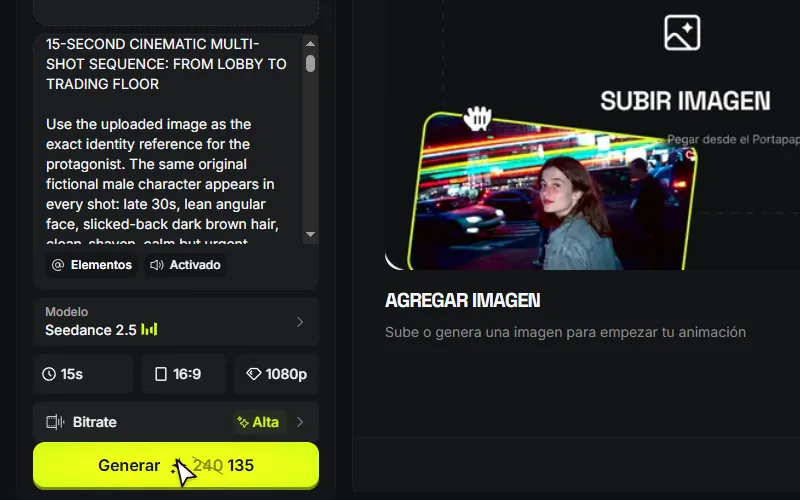
For a lower-cost test, you can use a smaller resolution and standard bitrate. For the final file, select 1080p and High when the cost fits your budget. If the prompt includes ambience or effects, leave the speaker control enabled; turn it off when you deliberately want a silent piece.
Review resolution, bitrate, and sound; the cost on the button updates with the configuration. - Check the cost and generate one version
Before clicking Generate, confirm in the same column:
- Seedance 2.5.
- The correct reference.
- Duration and aspect ratio.
- Resolution, bitrate, and sound.
- The cost displayed on the button.
Generate one version and wait for it to appear under History. If Higgsfield asks for human verification, complete it in the browser and check History before clicking Generate again.
- Watch the full result before correcting it
Play the block once without stopping. Then compare it with the prompt ranges and record observable issues: “the face changes at 0:08,” “the elevator never appears,” or “the sound jumps when he enters the corridor.”
Change one variable per attempt. If the interface offers region-level editing for that result, use it when only one detail fails. If a full section fails, generate a replacement shot for that interval and place it over the block that already works.
Build a longer video
Do not try to preserve a whole film with “continue the previous scene.” Work in blocks: keep the identity, renew the context, and create a bridge the editor can join.
If you saved the character as an Element, select it in every block. Otherwise, attach the same reference again and keep its identity description unchanged.
Design the next block
IDENTITY TO KEEP paste the stable protagonist or product description NEW BLOCK Duration and format: 15 seconds, 16:9 Narrative function: what must change New place or area: where it happens Entry image: first image Action chain: enters → discovers → decides → exits Exit image: last image Bridge from the previous block: direction, object, gesture, or sound Write this block from scratch with the same structure: context, shared rules, timed shot list, intention, and sound. Keep the identity, but do not copy the previous geography or use “continue the scene.” Do not generate anything.
Join blocks with a visible or audible bridge: the same direction of movement, an object that crosses the cut, a gesture completed in the next scene, or a sound that starts before the transition.
Before finishing, confirm you saved:
- The chosen block and any replacement shot.
- The identity reference.
- The exact prompt that produced each result.
- Duration, aspect ratio, resolution, bitrate, and sound state.
- A short note about what worked and what you will change in the next block.
Create a video starring yourself
The same structure can turn you into the on-camera presenter of a micro-lesson on any subject. It also works with a spokesperson or brand character. The difference happens before the prompt: you save several views of the same person as an Element and check its eligibility before mentioning it in the generation.
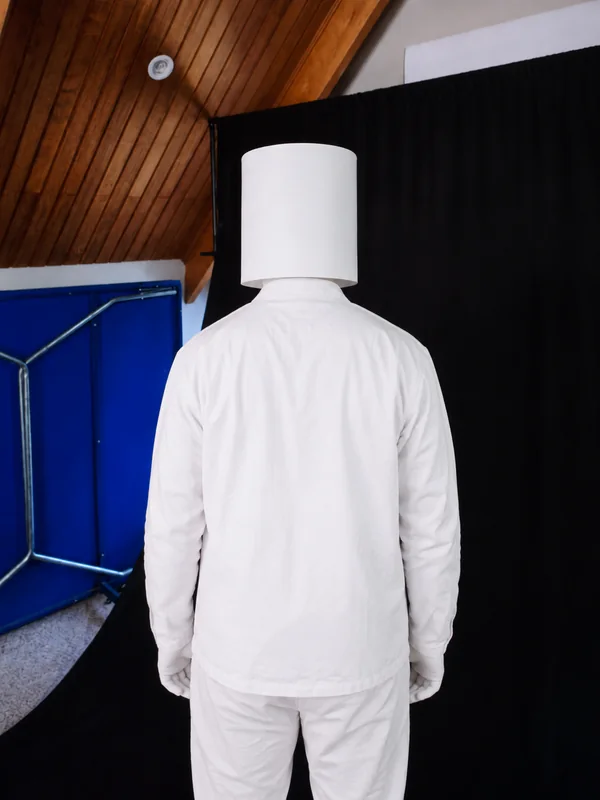
- Prepare four or five complementary photos
Use one person with a consistent current appearance. For a real face, combine a front view, both three-quarter angles, a close-up, and a full-height photo. Choose sharp images with a visible face, no heavy filters, dark glasses, or other people.
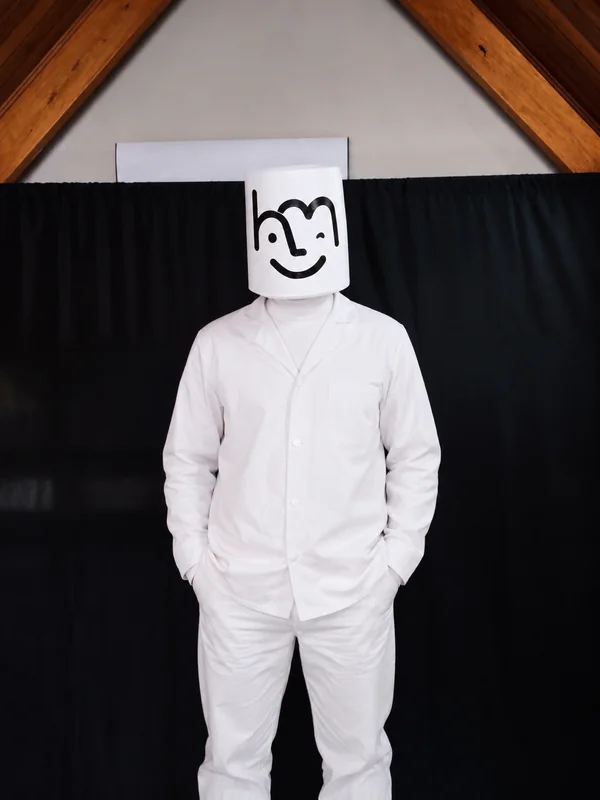
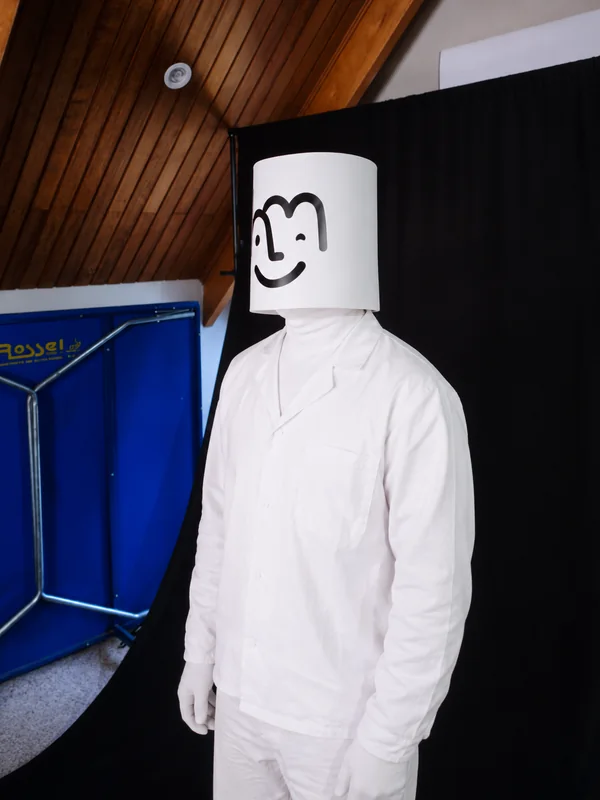
The Mark example uses front, three-quarter, and back views because his visual identity depends on the mask, silhouette, and wardrobe. That mask prevents the system from reading a real face clearly and may have contributed to the rejection, although Higgsfield did not provide an exact reason. If you are representing yourself, prioritize views that let Higgsfield read your face and only use your own photos or images of someone who has given you permission.
- Create and name the character in Elements
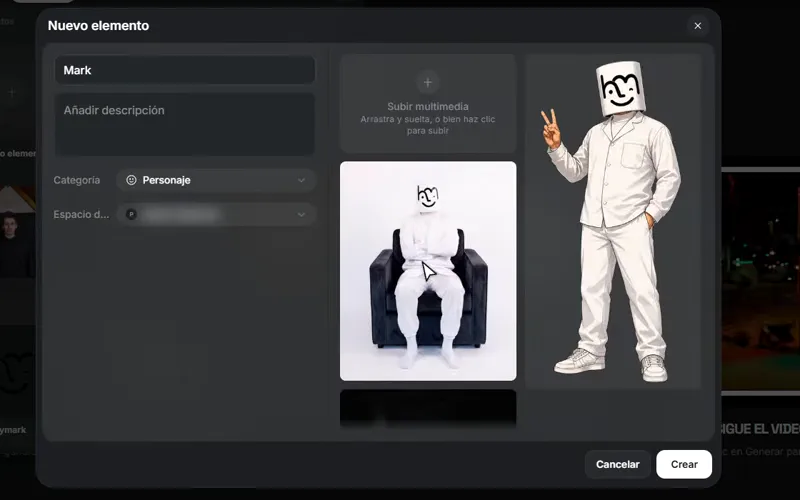
In the Prompt field, click @ Elements and choose New element. Upload the four or five photos, select the Character category, and assign a short, recognizable name such as Mark. Save it and wait for it to appear under My Elements.
The Element groups those references under one name. You do not need to drag every photo back into each new prompt, but it still must pass the review in the next step.
Upload several views, choose Character, and save the set under a short name. Thumbnails unrelated to this exercise are blurred. - Check the character's eligibility
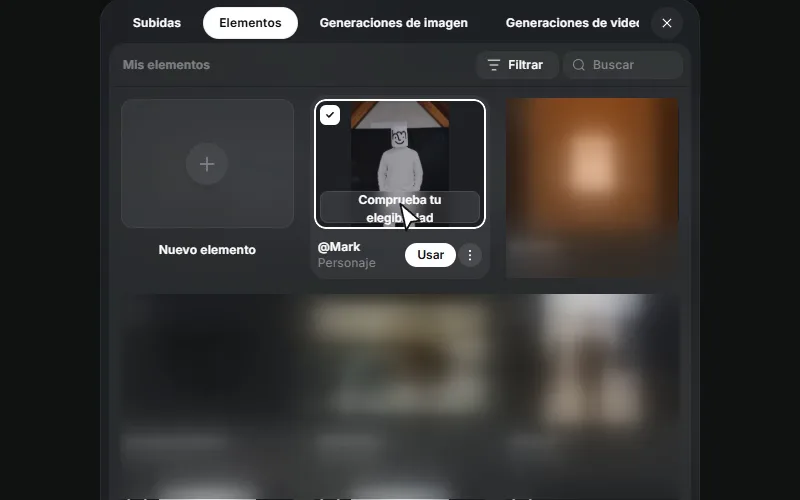
In My Elements, select the newly created card and click Check your eligibility. While Higgsfield reviews the face and intellectual property, the card displays Verifying face/IP. Do not move on to the prompt until the Element is enabled for use.
The test in this guide ended as Not eligible for the Mark set. If that happens, replace the references with consistent photos showing an unobstructed face and no logos, characters, or material you do not have rights to; then create the Element again and repeat the check. Do not try to bypass the block by typing the name as plain text.
The real check moves from the button to Verifying face/IP and, for this set, ends as Not eligible. That result means the references must be replaced before continuing. - Connect the character to the prompt with @
Only after the eligibility check passes, paste the prompt below. In its final field, type @ and select the enabled character from My Elements. Typing “@Mark” as plain text is not enough: the mention must be linked to the Element inside Higgsfield.
One mention is enough to attach it to the whole generation. Do not repeat it in every shot; describe what the same presenter does in each range and let the Element carry the visual reference.
15-second multishot micro-lesson
15-SECOND CINEMATIC MULTI-SHOT MICRO-LESSON: subject and specific concept CONTINUITY NOTE Use the character Element attached at the end as the same on-camera presenter in every shot. Preserve the person's recognizable face, body proportions and signature features across every cut. Keep the wardrobe consistent: wardrobe and one recognizable accessory. Do not copy the backgrounds from the reference photos. LEARNING GOAL Audience: who this is for By the final shot, the viewer should understand: one concrete takeaway Visual analogy: an object, place or physical action that makes the idea visible BLOCK CONTEXT The presenter explains the concept in location and time of day. Format: 9:16 for Reels, for example. Lighting and tone: clear visual direction. The setting may evolve inside the same block, but every change must help the explanation. REALISM RULES Natural body mechanics, believable eye contact, stable face and wardrobe, physically possible camera movement, clean speech rhythm. No duplicated body parts, warped hands, floating objects, generated captions, readable text or logos. Keep one main idea and one main action per shot. TIMED SHOT LIST SHOT 1 | 0:00 to 0:03.0 | Medium close-up. The presenter looks into camera, states the hook and introduces the question or problem with one clear gesture. SHOT 2 | 0:03.0 to 0:06.5 | Medium tracking shot. The presenter moves toward the visual analogy and begins the explanation through a visible action, not a text graphic. SHOT 3 | 0:06.5 to 0:10.5 | Closer demonstration shot. The presenter uses object or action to show the key relationship while the camera follows smoothly. SHOT 4 | 0:10.5 to 0:13.0 | Reaction or comparison shot. A visible before-and-after, cause-and-effect or contrast makes the concept click. SHOT 5 | 0:13.0 to 0:15.0 | Return to a stable medium close-up. The presenter delivers the takeaway and ends on a clean visual beat. PERFORMANCE The presenter is calm, direct and precise. No exaggerated teaching gestures or theatrical reactions. Every movement supports the explanation. NATIVE SOUND Natural room tone and subtle sounds from the objects in the scene. The presenter speaks in language, accent and tone. Keep the complete dialogue between 20 and 28 words. Assign one short line to each shot, in order: 1. "hook, up to 5 words" 2. "explanation, up to 6 words" 3. "example, up to 6 words" 4. "contrast, up to 5 words" 5. "takeaway, up to 6 words" No background music unless requested. CHARACTER ELEMENT after passing eligibility, insert @ in Higgsfield and choose the saved character once
Start the next video with real context.
HeyMark turns signals from your account into a brief you can shape into a coherent Higgsfield sequence.
Common problems
The prompt is too long to write by hand
Use the optional builder with Claude or ChatGPT, but review its output before pasting. The assistant should organize your decisions, not invent references, capabilities, or files.
Seedance does not follow all twelve shots
Twelve shots are a direction for the montage, not a mathematical guarantee. Reduce the shot count, give essential moments more time, and keep one main action per range. If only one take fails, create a replacement instead of rebuilding the entire block.
The character changes between shots
Use a cleaner reference, remove conflicting images, and collect permanent traits in the continuity note. Avoid changing face, hair, age, wardrobe, and accessories at the same time.
I typed @Mark, but Higgsfield did not connect the character
Delete the name written as plain text, type @ again, and choose the character from My Elements. The mention must be linked to the Element. If it does not appear, confirm that you saved it as a Character and that it passed the eligibility check; if it shows Not eligible, replace the references before continuing.
Does a four- or five-photo Element replace Soul ID?
No. This flow groups references in an Element for an initial generation. Soul ID is a separate flow that trains an identity from a larger photo set. Start with the Element for this exercise; if you are building a longer series and the face keeps drifting, check the current Soul ID requirements.
The video does not contain the sound I requested
Check the speaker control before generating and describe observable sounds instead of asking only for “cinematic audio.” If the first test is silent to save credits, enable sound for the final pass.
The location changes in the next block
That is expected between separate generations. Keep the protagonist and describe the new space again. Connect blocks through movement, sound, an object, or a cut; do not depend on the model remembering exact geography.
I want to create more than 15 seconds
Seedance 2.5 may offer longer durations in the interface, but a 15-second block is easier to direct and correct. Once it works, create another block or extend the duration deliberately, then join the scenes in an editor.
Higgsfield asks for verification when I generate
Complete it manually in the open tab. Then check History to see whether the task started before clicking again; this prevents submitting the same generation twice.
The cost changed when I adjusted the settings
That is normal: duration, resolution, bitrate, sound, and plan can change it. Treat the amount shown on Generate as the final confirmation, not a number copied from this guide.
Useful links
- Open Higgsfield Video with Seedance 2.5
- Seedance 2.5 on Higgsfield
- Seedance 2.5 prompting guide
- How to create and use a Soul ID character
- How Higgsfield credits work
Higgsfield can change model names and parameters. This guide was checked against the interface and official documentation available on August 26, 2026. If your account shows different options, follow the visible controls and confirm the cost before generating.