How to create your knowledge layer
In this guide, you will learn how to create your knowledge layer with Claude or Codex and save what you tell them about yourself: your story, thoughts, philosophy and decisions.
You need an AI with permission to read and save files in a folder on your computer. You can use Codex, Claude Code, Cowork in Claude Desktop or ChatGPT Work in the desktop app, if available on your account. Open a local folder and grant access.
A regular ChatGPT or Claude chat on the web cannot clone the repository onto your computer or update that folder on its own. To follow this guide, use one of the options above with access to your files.
Create your knowledge layer
- Open the repository
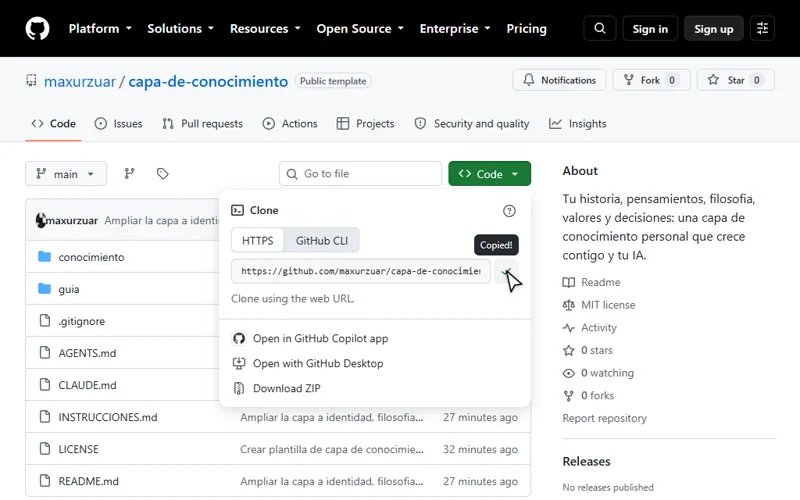
Go to Capa de conocimiento on GitHub. Click Code and copy the link.
On GitHub, open Code and copy the repository address. - Ask your AI to clone it
In your chosen assistant, with access to your local folder, send this message. Cloning means downloading a copy of the repository to your computer.
Clone the template
Clone https://github.com/maxurzuar/capa-de-conocimiento inside the folder I have open and tell me where it is. If no folder is selected, ask me where to save it. If a copy already exists, do not replace it.
If it cannot clone the repository, download the ZIP and extract it wherever you prefer.
When it finishes, open that folder as a project in your assistant.
- Ask it to work in that folder
Allow it to read and save files. Then paste this instruction:
Start my knowledge layer
Work in the template folder I just opened. First check that it contains INSTRUCCIONES.md and the conocimiento subfolder. If it is the wrong folder or you do not have access, ask me to open the correct one. Then read INSTRUCCIONES.md. Write my content in English, keeping the existing filenames.

From now on, save what I tell you about myself in its files: my story, thoughts, philosophy, interests, experiences and decisions. Do this while we talk here, without a separate request to save each thing.

Organize the information without inventing anything or changing what I meant. Distinguish an idea from a decision and record when I change my mind. If I ask you not to save something, respect that.

Start by asking what I would like to tell you about myself. When you save, check the files and tell me what you updated. If you cannot write to the folder, tell me.
- Start talking about yourself
Start telling it about yourself: your story, your ideas, how you think or anything you want it to remember. Your AI will organize and save that information in the folder as you talk.
Pick up in a new conversation
In a new conversation, give your AI access to your files and send:
Pick up the conversation
I want to return to my knowledge layer. Use the repository folder I have open or the location where we cloned it. If you do not know which folder to use, do not have access or find several copies, ask me for the path or to open the correct folder.

Inside that folder, read INSTRUCCIONES.md and the files in the conocimiento subfolder. Respond in English. What do you know about me? Tell me which files the information came from.
Check that it mentions something you told it before. Then keep talking: its answers can use what you have already saved.
Keep your copy
Keep your layer on your computer or in a private repository. The public template is there to help you get started; do not upload your personal information there.
Your AI updates these files while it works in that folder. If you use a chat that only accepts attachments, you will need to download the updated documents and save them yourself.
Connect your AI to HeyMark
If you want to work with your social media accounts from Claude or Codex, you can connect them to HeyMark.